
-
AuthorSearch Results
-
Sep 12, 2025 at 8:54pm #222143
 Benedict81Participant
The reason for wanting custom resolutions for the virtual monitor is, that you cannot always configure the resolution through the games .ini \ .cfg files or whatever, so you are left with what ever resolution you can create through the Vorpx configuration tool. Sometimes with different games I need strange resolutions like 3000×2880 or something like that to have the best image. Sometimes 4:3 or 1:1 resolutions introduce warping or something like that to the perspective, sometimes the image is too zoomed in (and if one cannot configure the FOV, fiddling with the resolution is the only way) and sometimes you get other problems (black bars on top and bottom of the image with 1:1 resolution, 4:3 is too zoomed in and the perspective does the warping thingy). My problem is mostly that I can create some strange resolutions through Nvidia Control Panel, but probably because of my monitor (and I’d rather use the virtual desktop and virtual monitor always anyway) I can’t go higher that certain resolution (the aforementioned 3000×2880). So, I think there are good uses for this functionality, maybe it is just me with my Pimax setup, but I tend to need those finely tuned resolutions from time to time depending on the game I am trying to run through Vorpx.
Aug 30, 2025 at 11:06pm #221976Cless_AurionParticipant@Ralf
I gave it one more go and… no luck there is just no way to make it work.I’m still pretty upset about it since it feels its so close to work, but it doesn’t.
For example, while running Baldur’s Gate 3, the game in VorpX will look low res (around 2160p), but when pushing the menu button on the controller, which opens the SteamVR’s menu and shows your desktop (which now has the game since its windowed at 4860p), the actual 2D image that is cloned that shows you the desktop… that one actually IS showing the full 4680p resolution and will look great! (just not 3D). Incredibly infuriating stuff :(
In any case, please tell us when and if you plan to do “VorpX2:Electricboogaloo” so we can support you once more properly! :D
Jul 31, 2025 at 9:12pm #221747Topic: Virtual monitor resolutions and sharpening
in forum Technical SupportBenedict81ParticipantHello.
I’ve been using Vorpx for awhile now and it is great to get to play some games in G3D that you could not otherwise. Some technical questions or features that I’ve got in my mind though…
On Virtual Desktop \ Virtual Monitor, is there a way to create any resolution that I want or could this be a feature to maybe add to it? Like now I can create 1:1 aspect ratio resolutions that are something like 2804×2800, so 4 pixels wider and the only other option is the 4:3 aspect ratio resolutions. Would be cool to be able to create any resolution with numbers for width and height. Also using the Virtual Desktop \ Virtual Monitor, is there anyway to alt+tab out of it if my monitor is shut down? Sometimes you need to use something like Cheat Engine to mod a wider FOV in to a game and you need to alt+tab out when the game starts to start the Cheat Engine. Now, I can do this if I am not using Virtual Desktop and my monitor is running, but if I keep my monitor on, I cannot use the Virtual Monitor resolutions with games, only when the monitor is shut down I have access to these Virtual Monitor resolutions within games.
Something that I’ve also noticed and maybe its just me, but I’d love to be able to crank the sharpening higher sometimes. It is very game dependent if the maximum setting is enough or too much. Sharpness is very important, at least to my eyes when playing in VR and the Vorpx sharpening tool leaves me wanting more sometimes. Any recommendations for a way to add more sharpening? Obviously Nvidias own Sharpening filter does not work and I can’t use OpenXR-toolkit anymore since some PimaxPlay updates ago.
Thanks!
Jul 22, 2025 at 3:42pm #221704In reply to: Cyberpunk VR Update Thread
RalfKeymasterYou can temporarily change the file extension of [CP2077]\bin\x64\plugins\vpx2077.asi from .asi to e.g. .asi_off if you want to switch to flat without uninstalling the mod.
Just in case: the easiest way to locate the install folder is:
Steam: right click the game’s name, select “Properties”, then “Installed Files > Browse”
GOG Galaxy: right click the game, hover over “Manage Installation”, select “Show Folder”Jul 4, 2025 at 2:56pm #221618Cless_AurionParticipantSorry for the late reply, crazy busy weeks! I’ve been testing thoroughly to give you as much information as possible.
Thanks for taking the time to check on this issue, I really appreciate it!
Damn, it working on your side almost makes it more infuriating.
I’m very hopeful we will be able to figure it out though, it would make my year!For this, I hope FPSVR’s “detect resolution” will work good enough.
Its results seem to match my visual experience accurately (visual and performance wise).>> Might be the game not actually running at the desired res,
Definitely not, made exhaustively sure this isn’t the case.>> might be your headset’s software doing weird stuff or whatever.
This might be a cause for it, its an obscure HMD, but it would be an issue exclusive to VorpX then, since no other game, or even UEVR are affected by it at all.
This HMD has 2 different drivers for the HMD. The official one by the makers of the HMD, which is their custom non-SteamVR non-OpenXR drivers. And another one (the one I use most), that is a written from the ground up custom driver that turns the HMD into a native SteamVR HMD. Testing by alternating both drivers shows no difference in VorpX behavior.I followed your instructions the best I could. Starting slow and steady.
Ridiculously low resolutions (like 720p), seem to make it worse since the HMD will run at that, double 720p. The problems start always when I try to go over 2160p. It just won’t happen.
All games running with no upscaler shenanigans, or AI enhancement of any sort, or supersampling like you asked.
Using only as a monitor, the virtual one VorpX creates running at 8640×4860. (I tested also with my regular 4K monitor, resolutions there won’t go over 2160p, so not much point to it).After playing around, this is the info I can give you:
HMD’s panel resolution per eye: 3552×3840
SteamVR Settings resolution:
3572×3816 (100%) — (Also tried other %, 50% and 200%, with 0 changes to VorpX behavior)
Advanced Supersample Filtering (OFF) (Also tried ON, nothing will change)Not running anything, compositor resolution: 5356×5724 (looks nice and clean)
Running games:
-Baldurs gate 3:1080p = 1809×2000
Aliasing is horrible. If I play the game flat in BigScreen (which keeps the 5356×5724 resolution for the HMD) the game becomes WAY more playable, its just like playing on a low resolution 1080p display, especially most aliasing on text disappears. (No awesome VorpX 3D effects there, of course :( )1440p = 2344×2592
Improvement, but far from ideal2160p = 2781×3072
This seems to be the limit I keep hitting.Every resolution over 2160p (4860p included) = 2781×3072
Worst part about this is, like I said, the game is ACTUALLY rendering at those resolutions, I can easily tell by eye by getting closer to the floating screen and new detail will show up, but also, because the framerates match the performance expected and, in BG3’s case, putting the mouse over the window on the taskbar, will clearly state the resolution to the right of the title of the game.
This applies to all games I tested. Just for the sake of testing, I tried resolutions in windowed, fullscreen with no luck whatsoever.
—
TLDR: no matter what resolution the game runs at, the HMD always runs against the 2160p wall. I wish VorpX could just… render at SteamVR’s resolution always or, just not mess around with the HMD’s resolution at all, I’d gladly pay the performance cost. Would that be a possibility?
—
Extra data that might be useful:
-For a render resolution 1:1 sample per panel pixel, resolution should be around 5081×5612 (209%), so definitely we aren’t failing on that side of things, in fact, when I open SteamVR’s menu it is perfectly sharp, since it IS running at the 5356×5724 even when VorpX is running at lower resolutions underneath it (usually 2781×3072)-Also, SteamVR wants to default the HMD to 150% (4372×4672).
Jun 24, 2025 at 3:58pm #221571In reply to: Quest 3 low anchor
BoblekoboldParticipantI’m wondering if I need to launch VorpX Viewer first to play only in VR, or is it not necessary?
It’s useful to launch VorpX Desktop Viewer if you want to play with a resolution you could not choose with your physical monitor. So yes you probably should.
I can see you are playing in 1920×1080. It’s a 16:9 resolution. First of all, you would get a better result with a 4:3 resolution. I would recommand at least 2160p (2880×2160) or 2880p (3840x2880p) if you play in full VR.
You didn’t raise ClarityFX and Sharpness sliders in your video. Maybe you should try (VorpX ingame menu page 2). It could give you a better image quality. There is also a Texture Enhancement slider sometimes (with G3D profiles).
100 FOV is a bit low to play in full VR (it’s Ok, but it’s not perfect). Did you try Immersive Screen display mode ?
Jun 23, 2025 at 1:34am #221567In reply to: Need help with best settings for Cyberpunk
_John Smith_ParticipantAfter watching some YouTube videos and playing a bit with the settings I seem to have found solutions:
1. I set the framerate cap to off and headset sync to custom/fast. This seems to give a smoother gameplay and – perhaps I’m mistaken – even slightly better graphics.
2. I increased vertical field of view in Cyberpunk settings to 90 (from 80). I also discovered that Vorpx apparently automatically added a custom resolution to Cyberpunk of 3200×2200 automatically and changed to that resolution (I set render res to Ultra in Vorpx).Problems are solved and everything looks fine (I’m using Virtual Desktop on Quest 3 set to use OpenXR in God-Like render res at 90 Hz, DLSS Transformer Model set to Quality).
Jun 21, 2025 at 8:50pm #221557Topic: Star Trek Voyager Elite Force 4k
in forum User ProfilesRJK_ParticipantStar Trek Voyager Elite Force (4k-G3D)
– Required: Rename stvoy.exe to stvoyk.exe
– Required: GlDirect5 (put opengl32.dll into game folder.
– Required: DGVoodoo2 v 2,6 ( install D3D9.dll and into game folder )
– Required: set DGVoodo2 to force 3840×2160
– Optimized for Cinema Modes
– Full VR available
– Profile availabe at the cloud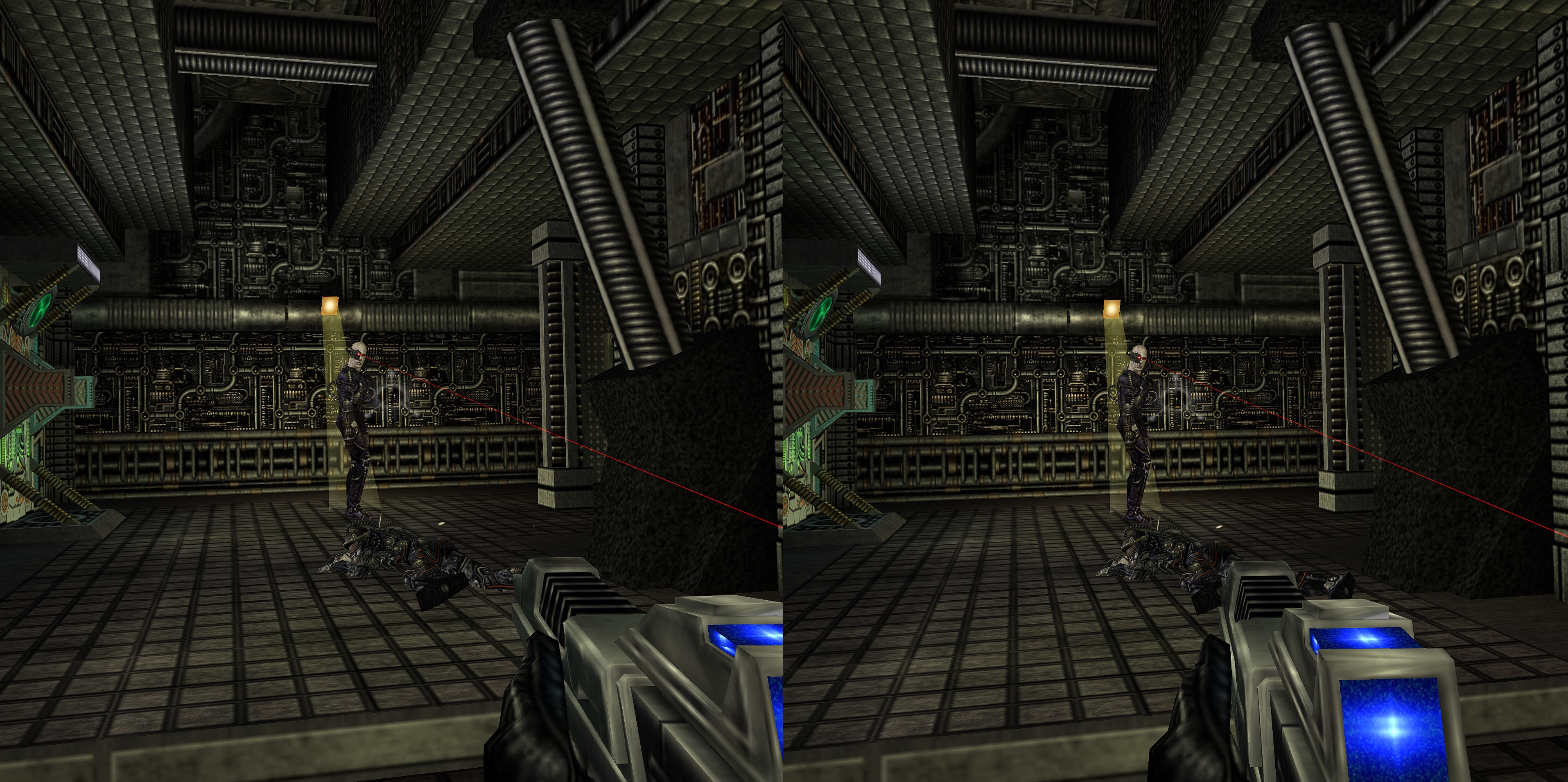 May 26, 2025 at 2:51am #221447
In reply to: Arma 2 OA help please
BoblekoboldParticipantI never tried this game, but from what I can see in the VorpX Config app, there is an official profile.
You can know if you hooked in the starting room and/or by checking if you have 3D in “3D reconstruction” inside the ingame menu (Geometry is the best type of 3D, or Z-normal / Z-adaptive).
Concerning zoom, you can of course unzoom like in this video at 7m15s :
(I’m not recommanding to use the same settings as him appart from that, in particular concerning aspect ratio…)But your problem probably isn’t because of zoom only. It’s because you need to raise the FOV (usually 112 horizontally, or 84 vertically).
I suppose you can adjust the FOV this way :
https://www.reddit.com/r/dayz/comments/ug6wu/how_to_adjust_your_fov_aka_how_to_cure_arma2/If this game has DirectVR, you can just use it like in this video at 4m44s :
It will configure most things for you.
Don’t forget to use the virtual monitor (launch VorpX Desktop Viewer with VorpX V24, then your game). It will allow you to use any resolution you want (usually a 4:3 one like 3840×2880).
You should also increase image quality with the options in the second page of the ingame menu : ClarityFX, Sharpness, Texture Enhancement, etc.
Lower gamma in VorpX if needed but not too much in the game.Concerning headtracking, you can change headtracking speed (and you can enable/disable it). It should work when you have the Full VR display mode selected. You can also use it in Immersive Screen.
Use edgepeek shortcut during cutscenes/menu.
May 12, 2025 at 4:39pm #221401In reply to: Higher resolutions?
Cless_AurionParticipantUEVR’s sharpness & clarity isn’t even close to VorpX at medium/long distance in every AAA game with large outdoors environement I tried
This is SO WEIRD to me.
Because its the literal opposite to me in 100% of the cases.
UEVR is always sharp to perfection (even if my GPU wants to cry at single digit FPS) when I crank up resolution, while no matter how high I put the resolution on any VorpX game… it always looks “terrible” (at around 2000-ish p). Like, I can put the game at literally 8K (4000p), the GPU is clearly doing it, since the game chugs like it wants to die… yet the resolution and jaggies I see are identical to the ones I had when rendering the game at 4k (2160p). That’s the issue for me there. Hopefully that explains it better!Also, to my knowledge… UEVR is best in UE games overall, by a lot. And I mean, its not surprising really, VorpX works on like a bizillion other engines, while that one is specific to UE4-5.
An example of that would be Harvestella. I can run the thing on UEVR at 15000×7500 (yes, 7500p per eye), at around 30-45fps. It uses up every ounce the MeganeX8K’s clarity, literally can’t look better. Then when I try to run it at 8k (7600×4300), it really doesn’t look any different from just playing it at 3860×2160.
So something weird is going on on VorpX that is limiting the resolution it renders at.
The Desktop Viewer itself, looks poor compared to the image that the SteamVR UI window gives too. Maybe running at high 2000p? But basically unusable compared to just using native SteamVR desktop windows…PS. I have around 20/20 vision. With the MeganeX8K you can actually do the optometrist tests and pass them about as well as you would in real life, it is just that dense in pixels. The difference between 2000p and 4000p is about the same that you notice on a 1440p to a 4K display, so its quite noticeable to me.
Apr 29, 2025 at 7:06pm #221361Topic: Higher resolutions?
in forum Technical SupportCless_AurionParticipantI noticed that the actual render resolution of the HMD when running VorpX isn’t that high now that I’m running a MeganeX 8K… any way to make it higher?
I’m used to play games now at around 5000×5000 to 7000×7000 and VorpX seems to run at like… 2600×2600 I get the impression? So even when I run the game at those high resolutions, the image quality is substantially lower than it should since the panels on the MeganeX are close to 4000×4000 by themselves already.
It is especially noticeable in Desktop mode, or with some specific games that I can run in UEVR at 7000×7000 and get flawless image where pixels are effectively invisible, but on VorpX is somehow greatly diminished by this issue…
Apr 21, 2025 at 4:39pm #221333In reply to: Dying Light 1
BoblekoboldParticipantI have the same configuration as you, except I played on Reverb G2 (with OpenXR) and I had really good results in comparison.
I played in full VR (unzoomed as much as I can without seeing black corners) with :
– Resolution : 3840×2880.
– max graphics
– FOV arround 110-120
– ClarityFX and sharpness in VorpX ingame menu page 2 probably at max (or near).Remember to lower gamma in VorpX but not too much ingame.
I use ExtraGameFov(50.00) in video.scr file (path of the config file : %USERPROFILE%\Documents\DyingLight\out\settings\) to get the right scale on my G2.
There is a FOV slider in game so you may not need to modify the file, except if you need to go higher than the max (just try a very high value and lower it until it’s perfect).
I usually use Judder Protect mode in most games.
>>> The game is stunning and you can see every details miles around.
Framerate is always good in Z3D.
It is good with G3D at the beginning of the game (tutorial). It’s Ok in Be The Zombie mod but during the main game it can be very demanding (with particles and light at dusk for example and I sometimes had to lower the resolution). It’s not the most perfect G3D because if I remember well the left eye was a little blurry compared to the right (unusual problem with VorpX). It’s probably because it’s an unofficial profile (from Dellrifter22, who makes great profiles). You can resize HUD but I usually don’t because It may move quest markers (same problem with most VR games and other injectors). So I use edgepeek when I need to. Immersive screen is also an option (usually clearer at low resolution).I played a lot in multiplayer as the night hunter (jumping zombie in Be the Zombie mod) and I’ve won most of my matches (I had to play in Z3D if the players were too good but I’ve won in G3D too sometimes).
Maybe Pimax is less optimized but it’s quite a difference with what you describe.
virtuayayParticipantok i found an older version of the fov utility but it is missing resolution settings and effects customization, not very helpful
also just to explain the resolution problem:
so my hmd is high resolution and i want to play homefront at like 3200×2400, this is what i have set in my read-only cfg file too
but the resolution settings in-game top at 1080p, and instead of using the cfg it just uses my monitor’s native resolution (even tho i have nvidia DSR resolutions it could choose instead, it doesnt even see those?)
Mar 13, 2025 at 11:01am #221223FarutosParticipantI dont’ quite understand why Ralf wont add vr x,y,z position translating script himself.
Its some quite easy to do. Chatgpt created such script for me and it work fine, its not game changers but works , tested it in gta 5.
It could be tuned for steps length.The script
import openvr
import time
import math
import keyboard  # Requires: pip install keyboard

# Sensitivity threshold (in meters)
move_threshold = 0.02  # 2 cm to detect movement
short_walk_time = 0.5  # 0.5 sec press for ~20 cm movement
long_walk_time = 1.5   # 1.5 sec press for ~1.5m movement

def get_hmd_pose(vr_system):
    """Retrieve the headset's position and rotation from SteamVR."""
    poses = openvr.TrackedDevicePose_t * openvr.k_unMaxTrackedDeviceCount
    tracked_device_poses = poses()

    vr_system.getDeviceToAbsoluteTrackingPose(openvr.TrackingUniverseStanding, 0, tracked_device_poses)

    hmd_index = openvr.k_unTrackedDeviceIndex_Hmd
    hmd_pose = tracked_device_poses[hmd_index]

    if hmd_pose.bPoseIsValid:
        matrix = hmd_pose.mDeviceToAbsoluteTracking
        x = matrix[0][3]  # Left/Right position
        y = matrix[2][3]  # Forward/Backward position

        # Extract rotation (yaw) from the SteamVR tracking matrix
        yaw = math.atan2(matrix[0][2], matrix[2][2])  # Yaw angle in radians

        return x, y, yaw
    return None, None, None

# Initialize OpenVR
# vr_system = openvr.init(openvr.VRApplication_Scene)
vr_system = openvr.init(openvr.VRApplication_Background)
print("✅ SteamVR Tracking Initialized")

# Store the last position
last_x, last_y, last_yaw = get_hmd_pose(vr_system)
if last_x is None or last_y is None or last_yaw is None:
    print("❌ Error: Headset tracking not available. Make sure SteamVR is running.")
    openvr.shutdown()
    exit()

print("Starting position:", round(last_x * 100, 1), "cm X,", round(last_y * 100, 1), "cm Y")
print("Starting yaw angle:", round(math.degrees(last_yaw), 1), "degrees")

# Main loop to track **headset-relative movement** and trigger key presses
try:
    while True:
        x, y, yaw = get_hmd_pose(vr_system)

        if x is not None and y is not None and yaw is not None:
            # Calculate relative movement (delta)
            delta_x = (x - last_x)  # Left/Right movement
            delta_y = (y - last_y)  # Forward/Backward movement

            # Convert movement into head-relative coordinates
            forward_movement = -(delta_x * math.sin(yaw) + delta_y * math.cos(yaw))  # Inverted for correct direction
            sideways_movement = delta_x * math.cos(yaw) - delta_y * math.sin(yaw)

            # Convert to cm for easier reading
            forward_cm = forward_movement * 100
            sideways_cm = sideways_movement * 100

            # Check movement threshold
            if abs(forward_cm) > move_threshold * 100:
                if forward_cm > 0:  # Moving forward
                    key = "w"
                    print("🔼 MOVEMENT: {:.1f} cm forward".format(forward_cm))
                else:  # Moving backward
                    key = "s"
                    print("🔽 MOVEMENT: {:.1f} cm backward".format(abs(forward_cm)))

                # Determine key press duration
                duration = short_walk_time if abs(forward_cm) < 100 else long_walk_time
                keyboard.press(key)
                time.sleep(duration)
                keyboard.release(key)

            if abs(sideways_cm) > move_threshold * 100:
                if sideways_cm > 0:  # Moving right
                    key = "d"
                    print("➡ MOVEMENT: {:.1f} cm right".format(sideways_cm))
                else:  # Moving left
                    key = "a"
                    print("⬅ MOVEMENT: {:.1f} cm left".format(abs(sideways_cm)))

                # Determine key press duration
                duration = short_walk_time if abs(sideways_cm) < 100 else long_walk_time
                keyboard.press(key)
                time.sleep(duration)
                keyboard.release(key)

            # Update last position for next frame
            last_x, last_y, last_yaw = x, y, yaw

        time.sleep(0.05)  # Short delay for smooth tracking
except KeyboardInterrupt:
    print("\nShutting down SteamVR tracking.")
    openvr.shutdown()
or for gta 5 script if you want press C to look behind and reverse movement
import openvr
import time
import math
import keyboard  # Requires: pip install keyboard

# Sensitivity threshold (in meters)
move_threshold = 0.02  # 2 cm to detect movement
short_walk_time = 0.5  # 0.5 sec press for ~20 cm movement
long_walk_time = 1.5   # 1.5 sec press for ~1.5m movement

def get_hmd_pose(vr_system):
    """Retrieve the headset's position and rotation from SteamVR."""
    poses = openvr.TrackedDevicePose_t * openvr.k_unMaxTrackedDeviceCount
    tracked_device_poses = poses()

    vr_system.getDeviceToAbsoluteTrackingPose(openvr.TrackingUniverseStanding, 0, tracked_device_poses)

    hmd_index = openvr.k_unTrackedDeviceIndex_Hmd
    hmd_pose = tracked_device_poses[hmd_index]

    if hmd_pose.bPoseIsValid:
        matrix = hmd_pose.mDeviceToAbsoluteTracking
        x = matrix[0][3]  # Left/Right position
        y = matrix[2][3]  # Forward/Backward position

        # Extract rotation (yaw) from the SteamVR tracking matrix
        yaw = math.atan2(matrix[0][2], matrix[2][2])  # Yaw angle in radians

        return x, y, yaw
    return None, None, None

# Initialize OpenVR
vr_system = openvr.init(openvr.VRApplication_Background)
print("✅ SteamVR Tracking Initialized")

# Store the last position
last_x, last_y, last_yaw = get_hmd_pose(vr_system)
if last_x is None or last_y is None or last_yaw is None:
    print("❌ Error: Headset tracking not available. Make sure SteamVR is running.")
    openvr.shutdown()
    exit()

print("Starting position:", round(last_x * 100, 1), "cm X,", round(last_y * 100, 1), "cm Y")
print("Starting yaw angle:", round(math.degrees(last_yaw), 1), "degrees")

# Main loop to track **headset-relative movement** and trigger key presses
try:
    while True:
        x, y, yaw = get_hmd_pose(vr_system)

        if x is not None and y is not None and yaw is not None:
            # Calculate relative movement (delta)
            delta_x = (x - last_x)  # Left/Right movement
            delta_y = (y - last_y)  # Forward/Backward movement

            # Convert movement into head-relative coordinates
            forward_movement = -(delta_x * math.sin(yaw) + delta_y * math.cos(yaw))  # Inverted for correct direction
            sideways_movement = delta_x * math.cos(yaw) - delta_y * math.sin(yaw)

            # Convert to cm for easier reading
            forward_cm = forward_movement * 100
            sideways_cm = sideways_movement * 100

            # **Check if "C" is being held**
            reverse_mode = keyboard.is_pressed("c")  # True when "C" is pressed

            # Check movement threshold
            if abs(forward_cm) > move_threshold * 100:
                if forward_cm > 0:
                    key = "s" if reverse_mode else "w"  # Reverse W ↔ S
                    print("🔼 MOVEMENT: {:.1f} cm forward".format(forward_cm) if not reverse_mode else "🔽 MOVEMENT: {:.1f} cm backward".format(abs(forward_cm)))
                else:
                    key = "w" if reverse_mode else "s"  # Reverse S ↔ W
                    print("🔽 MOVEMENT: {:.1f} cm backward".format(abs(forward_cm)) if not reverse_mode else "🔼 MOVEMENT: {:.1f} cm forward".format(forward_cm))

                # Determine key press duration
                duration = short_walk_time if abs(forward_cm) < 100 else long_walk_time
                keyboard.press(key)
                time.sleep(duration)
                keyboard.release(key)

            if abs(sideways_cm) > move_threshold * 100:
                if sideways_cm > 0:
                    key = "a" if reverse_mode else "d"  # Reverse A ↔ D
                    print("➡ MOVEMENT: {:.1f} cm right".format(sideways_cm) if not reverse_mode else "⬅ MOVEMENT: {:.1f} cm left".format(abs(sideways_cm)))
                else:
                    key = "d" if reverse_mode else "a"  # Reverse D ↔ A
                    print("⬅ MOVEMENT: {:.1f} cm left".format(abs(sideways_cm)) if not reverse_mode else "➡ MOVEMENT: {:.1f} cm right".format(sideways_cm))

                # Determine key press duration
                duration = short_walk_time if abs(sideways_cm) < 100 else long_walk_time
                keyboard.press(key)
                time.sleep(duration)
                keyboard.release(key)

            # Update last position for next frame
            last_x, last_y, last_yaw = x, y, yaw

        time.sleep(0.05)  # Short delay for smooth tracking
except KeyboardInterrupt:
    print("\nShutting down SteamVR tracking.")
    openvr.shutdown()
Feb 25, 2025 at 12:20pm #221172In reply to: Kingdom Come Deliverance 2
BoblekoboldParticipant@paramo :
In VR you can use ClarityFX (VorpX Ingame Menu Page 2) to upscale (and sharpness filter if needed) and you can also use any resolution you want with Virtual Monitor (Launch VorpX Desktop Viewer with VorpX V24 then the game). But you may need a good graphic card.
What is your VR headset ? It may be easier to use a 4:3 resolution like 3840×2880 or more.
If you play on Quest 3 or Reverb G2, it’s a good ratio anyway. -
AuthorSearch Results
-
Search Results
-
Hello.
I’ve been using Vorpx for awhile now and it is great to get to play some games in G3D that you could not otherwise. Some technical questions or features that I’ve got in my mind though…
On Virtual Desktop \ Virtual Monitor, is there a way to create any resolution that I want or could this be a feature to maybe add to it? Like now I can create 1:1 aspect ratio resolutions that are something like 2804×2800, so 4 pixels wider and the only other option is the 4:3 aspect ratio resolutions. Would be cool to be able to create any resolution with numbers for width and height. Also using the Virtual Desktop \ Virtual Monitor, is there anyway to alt+tab out of it if my monitor is shut down? Sometimes you need to use something like Cheat Engine to mod a wider FOV in to a game and you need to alt+tab out when the game starts to start the Cheat Engine. Now, I can do this if I am not using Virtual Desktop and my monitor is running, but if I keep my monitor on, I cannot use the Virtual Monitor resolutions with games, only when the monitor is shut down I have access to these Virtual Monitor resolutions within games.
Something that I’ve also noticed and maybe its just me, but I’d love to be able to crank the sharpening higher sometimes. It is very game dependent if the maximum setting is enough or too much. Sharpness is very important, at least to my eyes when playing in VR and the Vorpx sharpening tool leaves me wanting more sometimes. Any recommendations for a way to add more sharpening? Obviously Nvidias own Sharpening filter does not work and I can’t use OpenXR-toolkit anymore since some PimaxPlay updates ago.
Thanks!
Star Trek Voyager Elite Force (4k-G3D)
– Required: Rename stvoy.exe to stvoyk.exe
– Required: GlDirect5 (put opengl32.dll into game folder.
– Required: DGVoodoo2 v 2,6 ( install D3D9.dll and into game folder )
– Required: set DGVoodo2 to force 3840×2160
– Optimized for Cinema Modes
– Full VR available
– Profile availabe at the cloudTopic: Higher resolutions?
I noticed that the actual render resolution of the HMD when running VorpX isn’t that high now that I’m running a MeganeX 8K… any way to make it higher?
I’m used to play games now at around 5000×5000 to 7000×7000 and VorpX seems to run at like… 2600×2600 I get the impression? So even when I run the game at those high resolutions, the image quality is substantially lower than it should since the panels on the MeganeX are close to 4000×4000 by themselves already.
It is especially noticeable in Desktop mode, or with some specific games that I can run in UEVR at 7000×7000 and get flawless image where pixels are effectively invisible, but on VorpX is somehow greatly diminished by this issue…