
-
Search Results
-
Topic: Starfield Alpha v0.2 rev.b
The native Z3D mode in Vorpx is working well in this second profile; you don’t need any other external 3D driver !
Please install the Vorpx Beta and the vorpx (DX10,11,12) hook helper if you will be asked for. (Rename any other existing dxgi.dll to d3d12.dll in the Game Folder of Starfield, before you install the vorpx hook helper)
You will have a corrected User Interface and HUD, and all other improvements of the first profile after editing these settings of Starfield:
1. Deactivate in the graphic settings of Starfield: Dynamic Resolution, Motion Blur, Depth of Field and Film Grain
2. Resolution:
To set a square resolution with an aspect ratio of 1:1 in the GUI of the Vorpx Beta using the vorpx-config-tool in the tray, follow these steps:
1. Right-click on the Vorpx-config-tool icon in the tray and open configure
2. Navigate to the ‘Virtual Monitor’ in the Vorpx Beta GUI.
3. Create a custom resolution, such as 2404×2400 or 2164×2160.
4. Minimize it to the tray again.
5. Right-click on the Vorpx-config-tool icon in the tray.
6. In the menu that appears, select the option to enable the virtual monitor manually.Now, open the Windows System settings and go to the display and resolution settings:
You will see a list of two or more monitors. Look for the Vorpx virtual monitor; it should offer the square resolution you created, such as 2404×2400, select the Vorpx virtual monitor and change the resolution to the square setting.
In the Starfield in-game graphics settings, ensure the resolution is set ‘undefined’ (720p or any other value). Use a window with a white border and buttons for all other aspects. Vorpx will correctly display the output without the window border after connecting the game to your headset display. However, you may need to switch between displays in the Starfield in-game graphic settings to select the Vorpx virtual monitor.”
Change or Add to the StarfieldPrefs.ini, locate the the config file at
%USERPROFILE%\Documents\My Games\Starfield
Make sure to use a windowed mode in Starfield, not fullscreen or borderless,
in the StarfieldPrefs.ini file, modify or add the following settings:[Display]
bBorderless=0
bFullScreen=0
iSizeH=2160
iSizeW=2164After making changes, ensure the file remains write-protected; this is necessary for proper functioning (!)
3. Field of View (FoV), HUD, and Interface
Create a file named StarfieldCustom.ini in the same directory
%USERPROFILE%\Documents\My Games\Starfield
In the StarfieldCustom.ini file, add the following settings:
[Display]
fWideAspectLimit=1.0[Interface]
fSafeZoneXWide=440[Camera]
fFPWorldFOV=130
fTPWorldFOV=90After making changes, keep the StarfieldCustom.ini file write-protected to ensure it functions correctly (!)
4. Optional: Install the DLSS mod (Asi Loader)
To enhance graphics using DLSS, you need to download the DLSS 2.5.1 version for Nvidia RTX cards. Ensure that you do not install DLSS 3.5, Framegeneration, or the Reshade version of the mod.
You can find the mod and detailed installation instructions on the Nexus Mods website at the provided link:
Starfield FSR2 Bridge – Replacing FSR2 with DLSS or XeSS (without Reshade !)
https://www.nexusmods.com/starfield/mods/196
Recommended Resolutions: When using DLSS2 or FSR2, it’s recommended to use resolutions ranging from 1620×1620 up to 2880×2880 for the best experience.
Bugs: If you encounter issues with headtracking, you can try switching between different playstyles like Cinema, Immersive, or FullVR. Additionally, activating or deactivating Edgepeak might help restore working headtracking.
Topic: Starfield Alpha v0.2
Native Z3D of vorpx is working well in this second profile, you don’t need any other external 3D-Driver !
Please install the Vorpx Beta and the vorpx (DX10,11,12) hook helper if you will be asked for. (Rename any other existing dxgi.dll to d3d12.dll in the Game Folder of Starfield, before you install the vorpx hook helper)
You will have a corrected User Interface and HUD, and all other improvements of the first profile after editing these settings of Starfield:
1. Resolution
Set a Square Resolution with Aspect Ratio of 1:1, in the Vorpx Beta enable Virtual Monitor and add a custom Resolution of for exammple 2404×2400 or 2164×2160 etc.
Change or add to the StarfieldPrefs.ini
%USERPROFILE%\Documents\My Games\Starfield
keep it writeprotected after changes[Display]
bBorderless=0
bFull Screen=0
iSize H=2400
iSize W=2404(Use a Window and not Fullscreen or Borderless)
2. Remove Aspect Ratio Letterboxes
Use the 010 Editor to change the Hex Values from
8E E3 18 40 (search for)
to
00 00 80 3f (replace all)
(https://www.sweetscape.com/download/010editor/)
3. Field of View (FoV), HUD and Interface
Create a StarfieldCustom.ini
%USERPROFILE%\Documents\My Games\Starfield
keep it writeprotected after changes[Display]
fWideAspectLimit=1.0
[Interface]
fSafeZoneXWide=440
[Camera]
fFPWorldFOV=(130)
fTPWorldFOV=(90)4. Optional: Install the DLSS mod (Asi Loader)
If you have a Nvidia RTX Card please install,
Starfield FSR2 Bridge – Replacing FSR2 with DLSS or XeSS (without Reshade !)
https://www.nexusmods.com/starfield/mods/196
With activated DLSS2 or FSR2 i recommend Resolutiions from 1620×1620 up to 2880×2880
5. Deactivate in the graphic settings of Starfield, Dynamic Resolution, Motion Blur, Depth of Field and Film Grain
Bugs:
1. If you lost Headtracking, please switch between the Playstyles Cinema, Immersive, FullVR, (de)-activate Edgepeak to get back to working Headtracking
This has been a fun trilogy project the last couple months, and I think they are ready to share. Much like these games get better upon each installment, their vorpX compatibility does also. Still, I enjoyed playing them all and believe they each have good VR experiences to offer. You can find them quite cheap on sale these days also.
Three new profiles now on the cloud. Enjoy.
Sniper Ghost Warrior (G3D)
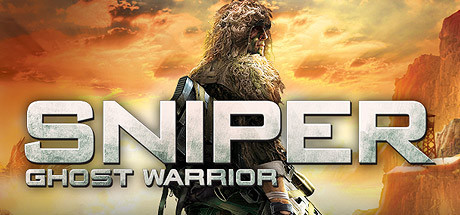
Something about the jungle setting and ability to pick up assault rifles might make me prefer this one to SGW2. Native FOV was extremely low and remains a bit low still even after extreme FOV Enhancement. Still a good fullVR 3D experience if you can tolerate some culling near top and bottom and have the shadows disabled.
– use a 16:9 resolution (2560×1440) any other ratio can cause glitches
*Don’t trust the red aim dot to be exact at long ranges, toggle Z3D hotkey for critical shots
*Disable raindrop effect with vorpX Shadow Treatment if distractingTopic: How is EdgePeek adequate?
Hello,
I bought vorpX to play Skyrim and got it working without too much difficulty.
What I realized makes my experience most difficult is the fact that the UI was obviously not designed for that use in mind. The problem is I have to focus on various UI elements instead of looking to infinity which hurts my eyes and makes this unplayable for more than a few minutes, none of the options below really addresses the problem.
1- UI Downscale: This might work if it was allowed to go below 50% which is still not possible with the latest version + if it did, the quality of the UI would be reduced substantially to make things too small to read/to low quality to read.
2- Modify the skyrim ini file to add a safezone and bring the UI to the center: This actually works somewhat better than the vorpX UI downscale in that it can place stuff in the middle of the screen but unfortunately makes UI elements stack unto each other making the UI hard to use.
3- EdgePeek I think is the direction towards an actual solution but there are two problems: My eyes still automatically track various UI elements and I can’t seem to rely on my head for looking at stuff. And the biggest caveat is I just can’t click on things while EdgePeek is activated, not sure if that’s by design?I’m thinking EdgePeek could be fixed if it could:
1- Be setup as a toggle as opposed to having to hold down the button.
2- Allow to click on in-game stuff while in EdgePeek mode by allowing clicks triggered from the center of the screen cross (perhaps locking the Skyrim mouse to the middle of the screen would do the trick).Then I’d be truly forced to move my head to look at the UI and I could click on UI elements while in Edge Peek mode.
Until then I simply resolve to playing without the Oculus.
Topic: Skyrim UI fix
For those who like me struggled with the Skyrim UI on the Dk2..
If you add these lines to your skyrim.ini (my documents/my games/skyrim/)[Interface]
fSafeZoneX=300.0000
fSafeZoneY=150.0000
fSafeZoneXWide=300.0000
fSafeZoneYWide=150.0000the interface/menus will be closer to the center so you can actually see it :) You can make it more transparant in the ingame settings so it’s not blocking your view so much.
Viewing 11 results - 1 through 11 (of 11 total)



Viewing 11 results - 1 through 11 (of 11 total)