Archives

Homepage Forums Search Search Results for 'Blur'

Viewing 15 results - 271 through 285 (of 509 total)
  • Author
    Search Results
  • #188592
    ilkj4832z
    Participant

    EARTH DEFENSE FORCE:IRON RAIN – G3D (Clear Version)

    My profile was a failure.
    The player was blurred when G3D STRENGTH was set to 5.0.
    So I prepared a new profile that was not blurred.
    Profile is in cloud,Check it.

    #188241
    Dave
    Participant

    For the blurry Image and the FOV in FullVR

    C:\Users\(user)\Documents\My Games\Ghost Recon Breakpoint\GRB.ini

    SharpenLevel=2.00000

    FOV=2.13000

    AutoFOV is still activated, but the most of the time you will get a bigger FOV with this setting.

    For Xbox Gamepad Problem in FullVR

    Deactivate the Gamepad Override in the vorpx ingame menu and set the Headtracking to 0

    #188238
    dellrifter22
    Participant

    Sniper Ghost Warrior 3 (G3D/Z3D)

    I’ve redone this old fullVR profile from a year ago with a few extra fixes. It can look quite stunning in places. I particularly like roaming around at night. The full body animations and derivable vehicles are a nice addition.

    Mild FOV Enhancement still had to be used causing a bit of motion for light sources, but you can toggle most of them off with Shadow Treatment if desired. I’ve also raised the camera for more comfortable weapon placement, which you can also adjust as needed.

    – a 4:3 resolution is recommended (1920×1440) for better performance
    – medium settings recommended as tested
    – turn off motion blur
    – slide FOV to max right in game settings

    *Hide HUD elements with Challenge difficulty settings
    *Adjusting HUD scale may affect scope alignment
    *Toggle lights and shadows with vorpX Shadow Treatment
    *If using cinema mode, reduce vorpX FOV Enhancement to Zero

    Sorry the shots have been so dark. You can right click them to enlarge view.

    #188236
    dellrifter22
    Participant

    Sniper Ghost Warrior 2 (G3D/Z3D)

    This one suffers from a bit of big gun syndrome, but what matters is looking through the scope feels good and the world fov is great. Bullet cams scale is more correct in this one. Night vision is pretty sweet too.

    Make sure to run the game in DX9 mode, 16:9, with FOV of 91 by editing the following lines of system.cfg found in:
    steamapps\common\SniperGhostWarrior2… system.cfg

    r_Driver=DX9
    r_Fullscreen=1
    r_Width=2560
    r_Height=1440
    cl_fov=91
    r_drawnearfov=91
    r_MotionBlur=0

    *Toggle shadows with vorpX Shadow Treatment

    #188069
    dellrifter22
    Participant

    Hmm, I thought we had another day with the beta. I did get some more time in before it ended though to make additional profile fixes. You can re-download the profile and hopefully be set for launch day.

    It cost an extra ~8fps, but G3D now has fewer lighting glitches and no more
    DOF blur. It runs heavy with lots of jaggies, but great for models and ironsights. If you’d rather have the fps and can tolerate some glitch, I can upload a lite version also.

    Z3D can look pretty nice here when you crank up the resolution and apply AA. I think most will choose this, but here’s my recommended setup for both using Rift CV1:

    Ghost Recon Breakpoint (Z3D/G3D)

    – use vorpX in Oculus mode for Rift (steamVR mode won’t launch correctly)
    – set UPlay launch argument in Breakpoint properties:

    /belaunch -be

    – set Extended FOV to max 100 in Video settings

    Low settings are recommended and still look good. You can keep textures High if you have the VRam. Mild Ambient Occlusion is also fine.

    Z3D FullVR
    – use a 1:1 resolution 2400×2400 in Fullscreen set to Auto aspect ratio.
    Keep resolution scaling at 100.
    – turn on Anti Aliasing, but do not use the additional Temporal Injection
    – set in game sharpening to full 100 and vorpX sharpening to full 2.00
    – Keep all vorpX HUD sliders to full 1.00 to avoid flickering

    G3D FullVR
    – use a 1:1 resolution 1280×1280 in Fullscreen set to Auto aspect ratio. (lower than 1280 doesn’t seem selectable in game)
    – turn off Anti Aliasing settings to avoid trees blur
    – reduce vorpX sharpening to 1.00
    – Adjust vorpX HUD depth to ~.90

    If 1:1 resolutions are not applying correctly, add lines to GRB.ini found in:
    C:\Users\(user)\Documents\My Games\Ghost Recon Breakpoint

    [Display Settings]
    KeepStandardAspect=1
    WindowMode=2
    DisplayWidth=2400
    DisplayHeight=2400

    Xbox controller override has been set so that headtracking should also work. You’ll need to remap the controller buttons to the corresponding keyboard buttons in the vorpX delete menu (bottom of controller page). I’m not sure there’s a way to invert Right stick though.

    Please remember to play in solo mode only and do not attempt to play coop or pvp to mitigate risk of being banned by BattleEye.

    Hopefully this all still works on launch code. Have fun.

    #188048
    Dave
    Participant

    lol, i can set the FOV to 2.13000 in the game GRB.ini !

    C:\users\your user name\documents\my games\ghost recon breakpoint/grb.ini

    FOV=2.13000

    FullVR FOV settings are now perfect !

    In G3D with low resolutions, you can set the sharpenlevel to 300, in the GRB.ini too. Now you can Play with activated Antialiasing.

    But there are 2 other problems in my setup:

    1. There is a half sized transparent “window” on top of the graphics, with some blurry distortions in Z3D.

    2. I have to set headtracking to 0, because i can’t aim something with my gamepad otherwise.

    any suggestions ?

    (by the way: using legacy reprojection mode gives me a performance boost)

    #188032
    dellrifter22
    Participant

    Yes, don’t use any cheat trainers and don’t attempt to play coop or pvp multiplayer. Keeping in solo mode I’ve never been banned form Wildlands and haven’t had any problem with Breakpoint so far. But the risk is always there I suppose. Be careful.
    ————————

    I’ve put a work-in-progress Breakpoint Beta profile on the cloud. It has both G3D and Z3D for you to choose from.

    G3D still needs some work, but all the basics are there. Already in a playable state. It runs heavy though, so keep the graphics settings low.

    – use a 4:3 resolution for best view-model FOV (1280×1024,1600×1200)
    – turn OFF all AA settings for G3D (or plants will be very blurry)
    – set Extended FOV to max 100 in game video settings
    – Low graphics recommended for G3D

    I left all vorpX HUD sliders at 1.00 to prevent HUD flicker in Z3D mode. You can adjust HUD size and depth as desired for G3D though.

    Zoom is set to a natural feeling camera FOV, but if you feel you must have more view, use vorpX image zoom out.

    I haven’t had a lot of time for testing between work, but will do more tomorrow. Should give us a solid two evenings to play.

    #187755
    dellrifter22
    Participant

    Homefront: The Revolution (G3D)

    Feels like an urban Far Cry with vibes of Deus Ex – liberating outposts with a bit of exploratory platforming. World design is nice and the gunplay feels good.

    While there are already Z3D cloud profiles, we now have a working G3D profile for Homefront 2. It still has some minor lighting glitches to sort, but all world objects are 3D as expected. I had to disable fog to prevent artifacts, and you may notice some decal/light-source swim due to mild FOV Enhancement. Ignoring that, things can look pretty impressive at times in this CryEngine based title. Nighttime in the rain amongst the search drones is stunning.

    The full-body presence and animations do well for immersion. Default weapon model placement felt a bit high, so I’ve raised the vorpX camera to my preference. This changes aiming down sights, so adjust vorpX height modifier if it breaks your weapon of choice.

    – FOV setup open: C:\Users\(user)\Saved Games\homefront2… game.cfg
    edit lines to 80:

    cl_defaultnearfov = 80
    cl_fov = 80

    – 4:3 resolution recommended for Rift (1920×1440)
    – turn off TAA anti aliasing and motion blur
    – set all Shadow related graphics settings to Low

    *Reduce vorpX FOV Enhancement if light/decal swim to bothersome
    *Adjust vorpX height modifier for preferred aiming
    *Scaling down HUD can misalign some UI effects
    *Hide HUD elements in game settings
    *Zero key to holster weapon

    #187629
    dellrifter22
    Participant

    Tom Clancy’s The Division (G3D)

    Never could get a reliable Z3D profile working before, but now G3D is playing nice. It took a while to figure out, but I think exploring the city streets of New York will be worth it. Only wish I could have kept 3D echo scenes without it causing black flicker everywhere. I had to make those 2D to keep the lighting stable.

    The games runs smoother in G3D than I expected, though I recommend you start with all low settings and work up from there. Best to keep all shadow related settings to their lowest or off.

    To maximize viewmodel fov, I’ve found that a square aspect ratio works best. It squeezes just enough to fit fullVR in my Rift. I also had to disable Temporal AA in game config to eliminate blury models.

    – go to C:\Users\(user)\Documents\My Games\Tom Clancy’s The Division
    – open with wordpad: GFXSettings.TheDivision.exe.xml
    – look for < O P T I O N N a m e = ” T E M P O R A L A A ”
    – under it set: V a l u e = ” I n v a l i d ” > (the spaces are important)
    – save and close document

    – create a custom 1:1 square resolution in your graphics driver panel (1200×1200, 1440×1440)
    – select your custom resolution in game using Fullscreen mode
    – set all graphics settings to LOW (still looks great)

    *Hide HUD elements in game’s UI settings
    *Lowering vorpX HUD scale can make 3D map confusing
    *FOV Enhancement can introduce lighting glitches

    Once you’ve got these settings in order, you should be in for a visual treat. Profile is set to barely fit Rift fullVR, hopefully it looks ok in other headsets too. Pimax8k version to follow soon on the cloud. Enjoy!

    #187352

    Topic: Far Cry 5 (G3D)

    in forum User Profiles
    dellrifter22
    Participant

    This is still somewhat experimental and not yet complete, but is already a good immersive gaming experience. I’m hoping the new tools coming later might iron out the remaining artifacts. There are alternative Z3D profiles available if you prefer.

    Far Cry 5 (G3D)

    G3D is working as intended across all world objects. It’s the terrain textures and shadows that do not yet align correctly. To mitigate eyestrain, I’ve reduced terrain textures to their most basic. Works well enough.

    I wish FOV in vehicles wasn’t so narrow, but I’ve adjusted EdgePeek to be more suitable for driving. Running around and shooting feel good though.

    **You’ll first need a working EAC bypass to hook this game, unfortunately. Please use Offline only.

    – use a 16:9 resolution (2560×1440)
    – set FOV to 109 in game’s Advanced Graphics settings
    – set Anti Aliasing and Motion Blur to OFF
    – Low Graphics settings recommended for best performance

    *Use EdgePeek in vehicles
    *Some shadow and pixelated artifacts remain
    *FOV Enhancement will separate the terrain
    *FullVR/Immersive modes optimized for Rift
    *Cinema mode optimized for Pimax8k

    3D screenshot upload attempt:

    #187159
    Ralf
    Keymaster

    Also use the original Skyrim if you still have it. Not only is it better performance wise, it also looks better since it has actual multisampling antialising instead of the SE’s blurry post process AA.

    For good performance you typically will have to reduce graphics settings. Medium details with higth texture resolution is a good starting point for Skyrim SE.

    #186878
    ilkj4832z
    Participant

    Remnant:From the Ashes – G3D

    Cinema Mode.
    Soul like game with a Gun.
    The game uses Unreal Engine 4, but when I use the Unreal Engine 4 game profile, the screen looks blurry.
    So I looked for a profile that would be a 3D profile that was not Unreal Engine 4.
    And I found a profile that can be three-dimensionally clear.
    However, although it is 3D, you cannot adjust the strength of the 3D effect.
    Profile is in cloud,Check it.

    #186647
    dellrifter22
    Participant

    A couple more for those who like to explore eerie forest trails at night.

    BIGFOOT (G3D/Z3D)
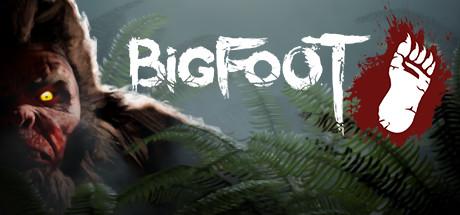
    That moment when the hunter becomes the hunted. A fun little game of cat and mouse as you try to find and trap Bigfoot before he finds and kills you. Fun national forest environment, fun gadgets to use, looks good in Unreal4 G3D. Play solo or coop of 4.

    – FOV setup: open Engine.ini from C:\Users\….\AppData\Local\Bigfoot\Saved\Config\WindowsNoEditor
    Add at the bottom:
    [/script/engine.localplayer]
    AspectRatioAxisConstraint=AspectRatio_MaintainYFOV

    – use a 16:9 resolution (2560×1440)
    – set graphics settings to Epic
    – turn motion blur off

    *Use vorpX Shadow Treatment to toggle reticle dot if needed
    *Cinema mode best for Pimax8k, fullVR and immersive modes best for Rift

    The Land of Pain (G3D/Z3D)

    Brief horror adventure through forest, caves, and mines. Find the right tools and keys to progress while running from evil creatures in the dark. Works well in CryEngine G3D, minus some miss-match shadows. I’ve opted to hide them, but you can toggle them back on with vorpX Shadow Treatment. Perhaps best to play the daylight prologue in Z3D, then switch to G3D for the remainder.

    – use a 16:9 resolution (2560×1440)
    – set fov to max 75 in game
    – set shadows to LOW

    *If launch is very pixilated, cycle Crystal Image setting in vorpX to resolve
    *If encounter crashes mid game, use experimental version from steam game’s properties beta tab
    *Cinema mode best for Pimax8k, fullVR best for Rift, immersive screen best for Z3D

    Find them on the vorpX cloud. Enjoy.

    #186601

    In reply to: Oculus Rift S Owners

    pintman
    Participant

    Okay so I bought an app called Glassify off Play store for your phone that quite cleverly measures your IPD distance using the reference point of the black strip of a credit card (must be worldwide standardised). Came up 61.

    Are VR headsets supposed to be a bit blurry towards the ends of the lenses? Like if I move my eyes without moving my head to read something on my periphery, it’s blurry.

    #186523
    dellrifter22
    Participant

    Found a few horror game demos on steam with nice Unreal4 and Cryengine graphics. Good for a night of free quality entertainment. Profiles are on the cloud.

    Gray Dawn Demo (G3D)

    -FOV setup: open C:\Users\….\AppData\Local\GrayDawn\Saved\Config\WindowsNoEditor… Engine.ini
    At bottom add:
    [/script/engine.localplayer]
    AspectRatioAxisConstraint=AspectRatio_MaintainYFOV

    -use a 16:9 resolution (2560×1440)
    -use Epic settings

    *cinema mode best for Pimax8k, fullVR/immersive best for Rift

    The Cursed Forest Demo (G3D)

    -use a 16:9 resolution (2560×1440)
    -use Ultra settings
    -set fov to max 80 in advanced game settings

    *cinema mode best for Pimax8k, fullvr/immersive best for Rift

    The Beast Inside Demo

    -FOV setup: open C:\Users\….\AppData\Local\TheBeastInside\Saved\Config\WindowsNoEditor… Engine.ini.
    Add at bottom:
    [/script/engine.localplayer]
    AspectRatioAxisConstraint=AspectRatio_MaintainYFOV

    -use a 16:9 resolution (2560×1440)
    -set Shadows to Medium
    -set AA to Low
    -set Blur to NO
    -set all else to Ultra

    *cinema mode best for Pimax8k, fullVR/immersive best for Rift
Viewing 15 results - 271 through 285 (of 509 total)

Spread the word. Share this post!