
Archives

Homepage Forums Search Search Results for 'keys'

Viewing 15 results - 256 through 270 (of 548 total)
  • Author
    Search Results
  • #186719

    In reply to: Screen height setting?

    dellrifter22
    Participant

    The recenter key should do the trick. Alt + space by default I believe. Check the configuration app for hotkeys.

    #186647
    dellrifter22
    Participant

    A couple more for those who like to explore eerie forest trails at night.

    BIGFOOT (G3D/Z3D)
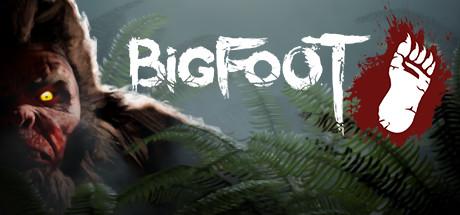
    That moment when the hunter becomes the hunted. A fun little game of cat and mouse as you try to find and trap Bigfoot before he finds and kills you. Fun national forest environment, fun gadgets to use, looks good in Unreal4 G3D. Play solo or coop of 4.

    – FOV setup: open Engine.ini from C:\Users\….\AppData\Local\Bigfoot\Saved\Config\WindowsNoEditor
    Add at the bottom:
    [/script/engine.localplayer]
    AspectRatioAxisConstraint=AspectRatio_MaintainYFOV

    – use a 16:9 resolution (2560×1440)
    – set graphics settings to Epic
    – turn motion blur off

    *Use vorpX Shadow Treatment to toggle reticle dot if needed
    *Cinema mode best for Pimax8k, fullVR and immersive modes best for Rift

    The Land of Pain (G3D/Z3D)

    Brief horror adventure through forest, caves, and mines. Find the right tools and keys to progress while running from evil creatures in the dark. Works well in CryEngine G3D, minus some miss-match shadows. I’ve opted to hide them, but you can toggle them back on with vorpX Shadow Treatment. Perhaps best to play the daylight prologue in Z3D, then switch to G3D for the remainder.

    – use a 16:9 resolution (2560×1440)
    – set fov to max 75 in game
    – set shadows to LOW

    *If launch is very pixilated, cycle Crystal Image setting in vorpX to resolve
    *If encounter crashes mid game, use experimental version from steam game’s properties beta tab
    *Cinema mode best for Pimax8k, fullVR best for Rift, immersive screen best for Z3D

    Find them on the vorpX cloud. Enjoy.

    #185557
    RJK_
    Participant

    Eisenbahn.exe Pro 5.0 (G3D)

    Stereo Profile for those who always wanted to play the old game in VR. Not tested if hotkeys can be used in VR.

    #185287
    RJK_
    Participant

    How everybode can take a Sreenshot no Headset required.

    The quality is not like if you take the screenshot through SteamVR (VIVE Systembutton+Trigger for example) but at least everyone is able to take screenshots and share them (Please upload your screenshots to the Engine List and/or use them with your profile introduction in the forum, the users will appreciate it)

    Strictly follow the steps below

    – Put headset aside, use Monitor
    – Open VoprpX Config App
    – Select General
    – Click Device Selection, choose Generic VR Headset (desktop mode)
    – For high res Screenshots gain resolution setting
    – Start Game
    – Open VorpX Menu (DEL)
    – Select Main Settings Page – See Image 1 below
    – Change to FULL VR Mode
    – Select Display Settings
    – Lower Lens Distotion Coarse – See image 2 below
    – Close VorpX Menu
    – Press PRINT on Keyboard
    – Either press ALT+TAB to bring game in background or close game
    – Press WINDOWS+R Keys
    – Enter Mspaint.exe, press Enter (alternatively use own graphics program)
    – When Mspaint has opened press STRG+V
    – Press STRG+S to save image as .jpg
    – If the game on the inofficial list has no Screenshot yet or is not even listed, please make a submission ( Submit something , Top right on Page)
    – Please also use screenshots in the VorpX forum so everyone else can see your game is really “G3D”

    Click to Enlarge

    STEP 1

    STEP 2

    #185249
    Grocs
    Participant

    Ah that is what Edgepeak is for – got it. I’ll also try the higher player / weapon FOV as well, cheers.

    Great I’ll set up some hotkeys and go from there. Really appreciate the constant advice.

    #185242
    Ralf
    Keymaster

    Leave the zoom at 1.0, use EdgePeek for menus: middle mouse button or left gamepad stick button (or right, can’t remember currently). EdgePeek temporarily switches to a cinema like view, perfect for menus and cutscenes. Also in the help, ‘Quickstart Guide’ this time :).

    You shouldn’t have to tweak much in most officially supported games. A lot of potential grief with vorpX stems from the wrong assumption that the many options available to tweak mean one has to actually do that, which most of the time is not the case. The defaults are usually pretty good. Especially as a beginner you can fairly easily break something by tweaking too much. So be careful.

    Hands: try a higher player/weapon FOV on the DirectVR page of the vorpX menu. That’s a bit of a general issue though with many games. Hands/weapons are often rendered with different camera settings than the world to look good on the monitor. Can’t be fully avoided in many cases.

    While I’m at it: if you want to customize hotkeys (including the EdgePeek key), you can do that in the config app.

    #185138

    Topic: Rewasd

    nieda113
    Participant

    @ralph, hi lately i run into serious problems using my remapper. The game freezes, gamepad keys will not funciton, animations cant be used, just to name a few things. Is thers a way to totally have vorpx not interfearing with my remapper? I know i can switch off in vorpx menu. When i hide the controller , i cant get anything to work, Partial and full will cause problems after a few minutes, like right gamepad button will only move the character instead of the camera, the right stick is like very very slow movement,, . If playing without vorpx itmy game runs fine. It seems that the keys got ignored or worse remapped to something else. So is there a way to make my remapper work?

    #185028

    In reply to: PSVR

    SirBrando
    Participant

    Thank you Ralf, I have looked at the video, but for some odd reason it just wont let me use the SteamVR, on Trinus I have it set to SteamVR, but when I load Vorpx with SteamVR, I cant use mouse and keyboard, along with not being able to switch the display, I have tried the windows key shift and arrow keys, but none of them seem to work.

    #185026

    In reply to: PSVR

    SirBrando
    Participant

    I’ve tried with all the arrow keys. Win+shift arrow keys. None of them work. I will keep testing and trying different ways to see if I can get it to work.

    #184658
    dellrifter22
    Participant

    I can’t seem to post links to the download page, but if you google “playfh2” you should find the free standalone version. There are alternative installers if you already have Battlefield 2 installed.

    Launcher Settings:
    – start game with FH2Launcher.exe
    – set bot number (95 is max for even fight, 121 gives Allies the remainder)
    – set bot skill (80% recommended)
    – use a 16:9 resolution (3840×2160)
    – set all graphics to high if you wish

    Singleplayer Instant Battle = even teams conquest match
    Co-op = choose team ratios for lopsided teams

    Recommended Match Settings:
    – in game, click Multiplayer>Create Local and choose Co-op mode
    Time limit = 0
    Max players = 1
    Spawn time = 1 second
    Ticket ratio = 999
    Bot ratio = 100
    Number of Bots = 48 (max possible for Axis team)
    Bot difficulty = 80
    Rounds per map = 1
    Friendly fire = off
    Auto balance = off

    Choose your list of maps to play, Start Server, and enjoy!

    Hints:
    *hide hitmarkers and HUD in options, all color sliders to 0, all transperancy sliders to 100%, or console command “renderer.drawhud 0”
    *Enter key to pull up spawn menu, C to toggle vehicle camera, F2 etc to switch seats
    *freecam by closing the spawn menu X top right, push spacebar to jump into cam, then movement keys to control, shift to slow down
    *tested on Pimax8k and RiftCV1, best played with fullscreen cinema/immersive

    dellrifter22
    Participant

    I’m talking about the In-Game Key Bindings page of the vorpX config app on the desktop, not the vr keys in the delete menu. (click the orange V icon in your taskbar tray). You’ll see the vorpX keybinds in there, and can change them how you like.

    ditchmagnet
    Participant

    I can’t figure out how to apply hotkeys. I see it in the settings, but how do I assign?

    #184157
    dellrifter22
    Participant

    F1 2018 steam keys are 75% off on GreenmanGaming through tomorrow. $15 not bad, might be getting my first F1 to try.

    AJR214
    Participant

    Since the latest update in Rocket League for Rocket Pass 3 (2 weeks ago maybe), I can’t get into the chat window during a game using T (general talk to everyone) or Y (party chat). If I play without VorpX, I can chat during a game. At the end of a game during the 60 second wait, i can use the gamepad to go up to the text field and then start chatting. But the T, Y, and U do not work to type at all during the game. It’s not just me as another person in my party using VorpX has the same issue. We both have Samsung Odyssey 2 VR headsets. Something is interfering with the keystrokes. Nothing has changed within RL or VorpX settings. Please help.

    #182896

    In reply to: Snap Turning

    Ralf
    Keymaster

    Using arrow keys for snap turning sounds like a neat idea. Although I can imagine a few pitfalls that may make games difficult to play that way, e.g. faster shooters may just be, well, too fast to be really playable that way. No promises, but I’ll do a few experiments and see whether that makes sense in practice.

Viewing 15 results - 256 through 270 (of 548 total)

Spread the word. Share this post!