-
Search Results
-
Topic: BIGFOOT / The Land of Pain
A couple more for those who like to explore eerie forest trails at night.
BIGFOOT (G3D/Z3D)
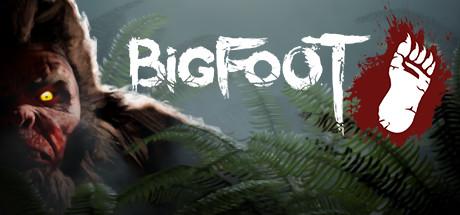
That moment when the hunter becomes the hunted. A fun little game of cat and mouse as you try to find and trap Bigfoot before he finds and kills you. Fun national forest environment, fun gadgets to use, looks good in Unreal4 G3D. Play solo or coop of 4.
– FOV setup: open Engine.ini from C:\Users\….\AppData\Local\Bigfoot\Saved\Config\WindowsNoEditor
Add at the bottom:
[/script/engine.localplayer]
AspectRatioAxisConstraint=AspectRatio_MaintainYFOV– use a 16:9 resolution (2560×1440)
– set graphics settings to Epic
– turn motion blur off*Use vorpX Shadow Treatment to toggle reticle dot if needed
*Cinema mode best for Pimax8k, fullVR and immersive modes best for RiftThe Land of Pain (G3D/Z3D)

Brief horror adventure through forest, caves, and mines. Find the right tools and keys to progress while running from evil creatures in the dark. Works well in CryEngine G3D, minus some miss-match shadows. I’ve opted to hide them, but you can toggle them back on with vorpX Shadow Treatment. Perhaps best to play the daylight prologue in Z3D, then switch to G3D for the remainder.
– use a 16:9 resolution (2560×1440)
– set fov to max 75 in game
– set shadows to LOW*If launch is very pixilated, cycle Crystal Image setting in vorpX to resolve
*If encounter crashes mid game, use experimental version from steam game’s properties beta tab
*Cinema mode best for Pimax8k, fullVR best for Rift, immersive screen best for Z3DFind them on the vorpX cloud. Enjoy.
Topic: Kholat
Kholat – G3D
Profile on the cloud 3d could be better, but good sense of scale
Positional tracking works with some lighting issues, less noticeable during darkened areas and night time.
Topic: Contrast Balance
I am new to vorpx. I have been trying out Star Wars Battlefront 2 with my Dell Visor WMR headset. The VR images have a horribly high contrast. Darkish colours are near black and light colours are bleached out. There are only the two extremes. Altering the vorpX brightness will improve one (eg dark colours) whilst worstening the other (eg light colours), and reducing saturation removes colour. Is there a way to reduce the contrast so that the image is no extreme like this?
I am new to vorpx. I have been trying out Star Wars Battlefront 2 with my Dell Visor WMR headset. The VR images have a horribly high contrast. darkish colours are near black and light colours are bleached out. Altering the vorpX brightness will imprive one (eg dark colours) whilst worstening the other (eg light colours), and reducing saturation removes colour. Is there a way to reduce the contrast?
Also wondering if I can set a key to toggle head movement on and off. This feature would be great for cockpit style games where you can also toggle ‘free look’ on and off in game.
Topic: vorpX 18.3.2 Available Now
Update 2018/12/15
vorpX 18.3.2.2 has been released. This (hopefully) concludes the series of fixes related to issues with the most recent SteamVR version.
Changes/Fixes:
- Improvements for WMR headsets related to issues with most recent SteamVR.
- Fallout 76: FOV did not work since the game got official FOV change support.
- OpenVR updated to 1.1.3b
Update 2018/12/09
vorpX 18.3.2.1 has been released. This hotfix addresses the SteamVR head tracking swim/latency introduced with yesterday’s update. No other changes.
Update 2018/12/08
vorpX 18.3.2 has been released. This is a maintenance release mainly addressing frequent frame judder in SteamVR mode after the latest SteamVR update.
In addition to that some related changes originally intended for vorpX 19.1.0 have been backported to 18.3.2, most notably support for Motion Smoothing (SteamVR), respectively Asynchronous Space Warp (Oculus). vorpX 19.1.0 is still on track for a pre-Christmas release.
Changes/Fixes:
- SteamVR: Fix for frequent judder below 90fps with recent SteamVR versions.
- SteamVR/Oculus: Motion Smoothing/Asynchronous Space Warp support.
- SteamVR: Supersampling <1.0 is now taken into account (only important for Pimax 5k/8k).
- Oculus: Crystal Image setting takes user set super sampling into account.
- D3D11: several multithreading fixes and improvements
- The Witcher: better Geometry 3D profile, Z3D parameters tweaked
- The Witcher 2: G3D did not work anymore, Z3D parameters tweaked
- GTA V: scalable HUD added
Update 2018/11/15
vorpX 18.3.1 has been released. This is a maintenance release that mainly adds support for Fallout 76. The profile is a fully featured DirectVR profile with everything DirectVR can do in the best case including automatic resolution, FOV (two methods) and basic roomscale.
Additionally minor issues with the program itself and other profiles have been fixed.
In case anyone wonders: the Frostbite engine G3D support that sparked a bit of interest recently is still in development and will be made available with the next larger update 19.1.0 before the end of the year.
New profiles:
- Fallout 76: G3D/Z3D, full VR, DirectVR: head tracking, resolution, FOV, tweaks
Changes/Fixes
- Effects that look bad in VR (e.g. DOF blur) can also be disabled with Z3D.
- DirectVR scanner could time out with large scans in low memory situations.
- DirectVR menu page didn’t behave correctly if both memory scan FOV and .ini edit FOV are available.
- FOV scan was run despite .ini edit FOV being selected if both are available.
- Fixed an occasional G3D crash in Fallout 76 (and maybe other DX11 games).
- Arma III: DirectVR FOV was slightly too high.
- The Witcher 3: some objects were rendered at wrong depth.
- Crysis 3: reflections fixed, effect fixes.
- Fallout 4: minor gun decals and fire glitches fixed.
Update 2018/10/25
vorpX 18.3.0.1 has been released. This is a hotfix that addresses the issue below. No other changes.
- Black textures with Z3D in some D3D11 games (18.3.0 regression)
vorpX 18.3.0 released
After four maintenance releases for the 18.2 branch it’s finally time for a slightly bigger release with a bit of feature refinement and also more and enhanced game profiles. Most notable additions are: Dark Souls Remastered, Monster Hunter World, Shadow of the Tomb Raider and Assassin’s Creed: Odyssey.
Experienced users can now create much better custom profiles by defining HUD/shadow etc. shaders.
For details please check this blog post.
Hello guys.
I just bought my Oculus Rift, and the bought vorpx. I did Oculus’ tutorial, SteamVR tutorial, played a bit of Lucky’s Tale and The Lab.
On all these tests, VR graph was great. Almost as great as in my monitor. Indeed, in some The Lab environments I really felt I was inside it, given the quality of texture and lighting.
Then I went to vorpx, and graphics are bad. And very very bad. I first tried Outlast (coincidently, it’s for free on Humblebundle!). Used 1920×1440 with no performance issues, but graph was very ugly, much worse than monitor. It seems the game is in 8bit color…
Maybe it was because the game is very dark, so I tried Oblivion. But again, very ugly graphics, as if in 8bit color. I made some tweaks changing its fov, its resolution, no luck.
In both games I applied Optimize Settings.
Also, sometimes menu texts are almost unreadable, in both immersive and EdgePeek modes. Even vorpx ingame menu is very hard to read.
I started to believe it was Rift’s lack of quality, but I went back to Lucky’s Tale and its graph is great.
Considering that monitor graph is 100%, I’d give The Lab a 95%, Lucky’s Tale a 85%, and both Outlast and Oblivion not even 20%.
Really, it’s so bad that games are unplayable. It’s not a matter of resolution, headache, disorientation. I’m feeling no sickness at all and my GTX 1070 is easily running these games. It’s that colors are very very bad, even worse than old Quake colors.
Anything I can try? This is very frustrating because I really wanted to play horror and TES games on VR. I wasn’t expecting to have the dame image quality of my monitor, but I can’t play games this ugly.