Did around 45 minutes testing various settings and that is all I could take before my head explodes and my eyeballs pop out of my head. Have a significant headache now :P Here is my experience on a Quest 2 through Air Link using a machine with a 8700k and 3070ti on Win 11:
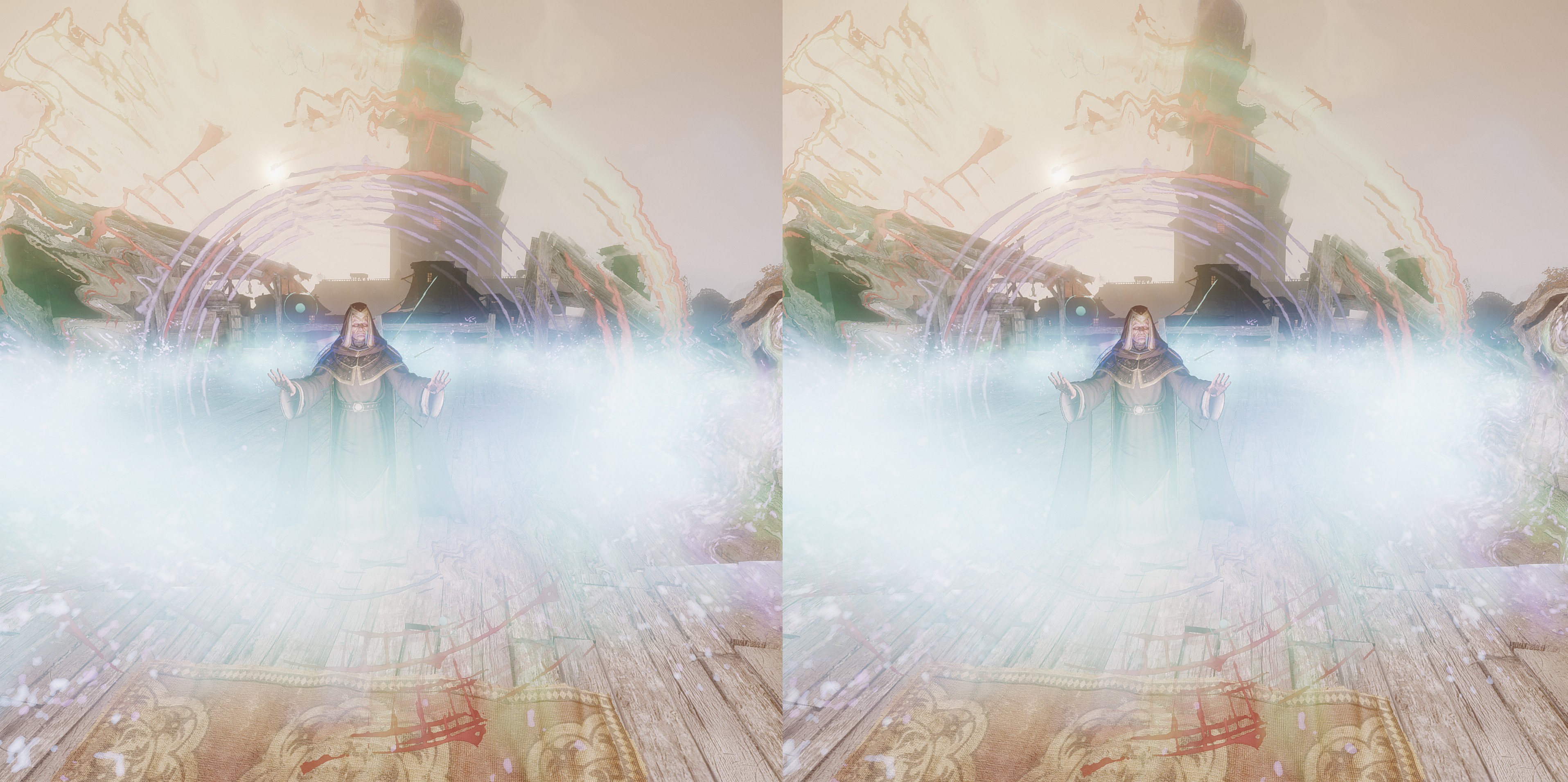
The default standalone seems to perform okayish, but the resolution is far below anything I would consider playing. Tinkering can be problematic, as small changes can result in a significant reprotection and encoding latency errors. Manually setting the resolution through the in-game menu didn’t seem to persist after a relaunch, though maybe tweaking the VorpX resolution adjusts these values?
Tracking, scaling, etc are way better than the VR modes I dinked around with yesterday. If only the image was clearer with decent fps. Would even settle for 45 at this point. I set everything to low or off and turned dlss to maximum performance with only minor gains.
It is nice to have full g3d, but there are a lot of auras on objects. Would even look great in cinema or immersion mode, where I think VorpX tends to shine in my short experimentation with games. Worth noting the the Rift software isn’t fully compatible with Windows 11, but there is a work around by making sure the debug log is in focus. Hasn’t been necessary while playing other games in Vorpx.
Will follow this thread and continue tweaking once I can fit my eyeballs back in their sockets.
Perhaps also interesting:
As soon as I want to start the VorpX Desktop Viewer, the Mixed Reality Portal starts as expected. I can also catch a glimpse of the Dekstop. However, as soon as I move my head under the VR Device or press a Keyboard or mouse button, I only see a kind of loading screen on which several “balls” move. Endless….
I’ll start some other games and create the support log. Thanks a lot for your help!!! :)
Quick Start Guide:
– start VorpX
– start the Configure VorpX Tool, go to “Cloud Profiles”, search for Rocket League, import the latest Profile from a genius named TechnoGoat (“for DX11”)
– read the instructions of that profile
– start the game
– in game: FOV max, start with ball cam
next steps:
– add the startup parameters for a better resolution for RL in your games launcher (-ResX=... -ResY=...)
– tune the in game video settings
– add the custom resolutions for VorpX
– try different camera settings in game an different profiles in VorpX
– try VorpX’s FOV enhancer
See you in tournament!
I’ve globally deactivated steam overlays in steam settings, doesn’t help.
VR Cinema Mode? Whats that suppposed to be?
I select Grand theft auto 5 standard profile in vorpX configurator and select apply & close.
It is very difficult to me to answer that because I simply have too many games.
I play mostly VR games but I do play flat games from time to time, and I only play with VorpX/HelixVision in those cases. Example: Gunfire Reborn (G3D and I wish it was native VR!!) Pinball FX3 (using Helixvision for G3D), Aquanox Deep Descent (G3D), Dark Alliance (struggling now to get proper G3D with VorpX), etc.
But, I have a close friend that stays and play some games with me, I showed VR to her many times but we play together flat games mostly.
So I guess I can answer with 100% flat games when I play with her.
She likes Mortal Kombat or Hellish quart to name 2 good examples, and those are clearly more enjoyable playing both at the couch.
Also part of the joy is enjoying gaming together with music: https://youtu.be/NpE9KJpESJQ
base on the blair witch profile.
this game has Z3D with many profiles :
conarium
dragon ball z kakarot
the outer worlds
and maybe some others.
looks neat in Z3D :D
Hi team,
I’ve been using vorpx for a few years now across a variety of different machines and headsets and have never had any issue. Within the last couple of days I have been plagued by some oddball behaviour on games that have always been working fine for me.
Fallout New Vegas:
DirectVR scan causes freeze and crash to desktop.
Metro 2033 / Last Light Redux:
About 1 in 3 game startups won’t crash. Once in game, everything looks fine but DirectVR scan crashes to desktop.
Some other titles work perfectly fine (Mirror’s Edge / Dishonored) and DirectVR scan as intended. I use windows defender as my AV and have changed no settings on that side of things. I also added vorpx to its exclusions just in case some windows update made it overzealous.
I went the nuclear option and did a fresh install of win10 and the issues persists. I have also tried doing clean re-installs of vorpx inside and outside of the c: programs folder. No difference was discovered.
I’m using a valve index on a AMD 5950x, 64gb RAM and a RTX 3090 on Win10 64bit (21H1 OS Build 19043.1052)
I’m curious if anyone else has encountered similiar issues.
Indeed it does not work anymore. I tried creating a new profile from the Dragon Ball Z: Kakarot one but it doesn’t work either. Any idea on which one is the most recent Unreal Engine profile on VorpX?
Please do not use the VR version of Reshade with vorpX if you care about performance. It gets applied at the headset render stage at the full headset rendertarget resolution and headset framerate, which is very costly. If you ask me, I’d say actually don’t use it with any VR app/game.
Applying a reshade shader chain to VR is in the ballpark of 6-12 times (depending on headset and supersampling) more costly pixel shader wise than doing the same to mono 1080p/60fps gaming. Two images per frame at a higher resolution and a higher framerate. Wasting a GPU’s pixel shader throughput in such a way is a fairly questionable idea in VR in general and an outright bad one with vorpX in particular.
Really important things like sharpening and gamma correction can be applied directly in the vorpX menu in an optimized fashion.
I dont think hat foot comparison is correct, more like buying a baseball cap and wearing it backwards.
I had no idea they had rolled this out until reading these posts.
The updated motion smoothing implementation seems to be a BIG improvement on the previous effort based on some quick and dirty tests. I previously found the oculus variant lightyears ahead of the competition and mandatory for a select few games. For comparison, I found the motion vector variant for the HP reverb to take (a somewhat distant) 2nd place, and steamVR dead last.
Project Cars 2 and various other race/flight sims were usually a case of fidelity compromise in order to prevent steamVR’s ugly motion smoothing kicking in and introducing ghosting or oddball artefacts.
I’d say this updated smoothing variant puts it within spitting distance of Oculus ASW. Project Cars 2 felt very smooth for me with shadow, track, car and MSAA at combinations of med/high/ultra at either 120 or 144 hz which was something I never felt previosly even when those settings were low/med at 80-90Hz to try and squueze performance out of the game.
I could always tell when motion smoothing kicked in or was being utilised because track side detail would strobe or jitter. Now I can’t really spot it.
I haven’t tested DCS yet, which is where I find motion smoothing sinks or swims in terms of performance, but I am hopeful based on what i’ve seen thus far.
Lichdom: Battlemage (G3D)
1rst Person, RPG, Hack n Slay with huge fireballs and stuff. Great 3D in all modes.
– Maximize game FOV
– Turn oFF motion Blur
– Full VR w. Headtracking
– Scalable HUD
– Cinema Mode on Default
– Profile available at the cloud

Currently 60% OFF Here
The way vorpX handles the interaction between game FOV, ImageZoom and other relevant settings is designed to ensure the same values always produce the same result regardless of the headset used. That’s one of those basics where I’m more than 100% certain that they work as they are supposed to, absolutely zero chance that there is anything wrong in that regard.
I can only assume that either the values you got from the YouTube video or your eyeballing corrections aren’t entirely precise, impossible to say for me which one.
I’ve noticed when I follow guides on YouTube to configure a specific game for FullVT, that copying their exact vorpx in-game settings (image zoom #, enhanced FOV #, etc…) the image I get is always off, and requires eye-ball tweaking until the image looks good, but the numbers don’t match at all. It’s not hard to do, so it’s not a big deal, but I’m just curious what could be causing the different results with the same settings. I’m pretty sure I’m using the same screen ratio and resolution, as well as the same game profile. So why don’t the exact numbers translate? What differentiating factors could be making the difference?
not sure if Ralph can provide a better insight if there is a way to pull G3D on Pinball FX3.
I ended up using HelixVision to play it in 3D but I will prefer to have also VorpX at the same level.

